


Use APKPure App
Get Google Authenticator old version APK for Android

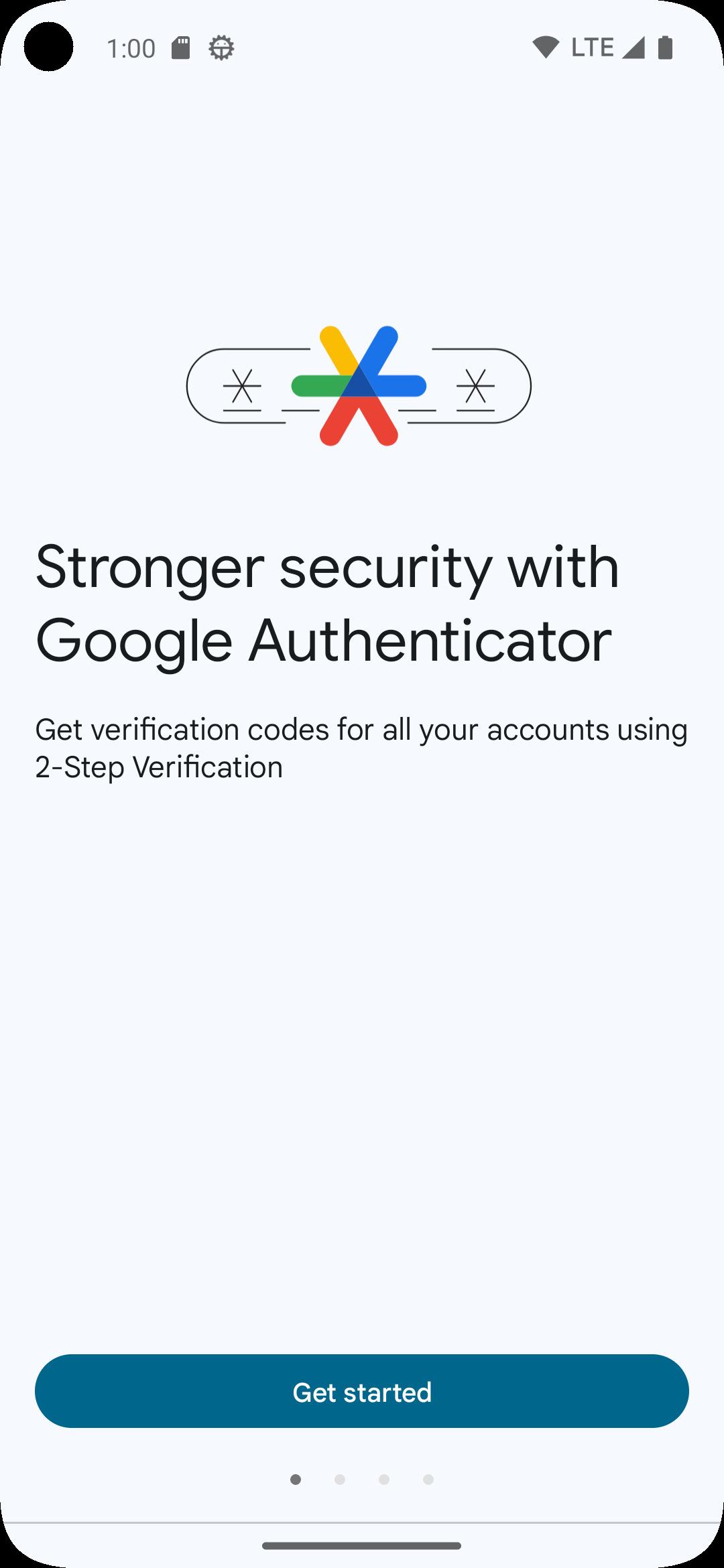
Google Authenticator is a security app that generates one-time codes for 2-Step Verification.
Google Authenticator helps when you need an extra check to confirm it is you signing in to sites and apps. It creates short, time-based codes on your phone, so you can log in even without internet service. The app works with many popular services and keeps your sign-in codes close at hand. If you upgrade or replace your phone, you can move your codes with built-in tools. Download Google Authenticator APK latest version on APKPure to manage many accounts with clarity and speed.
Offline one-time codes
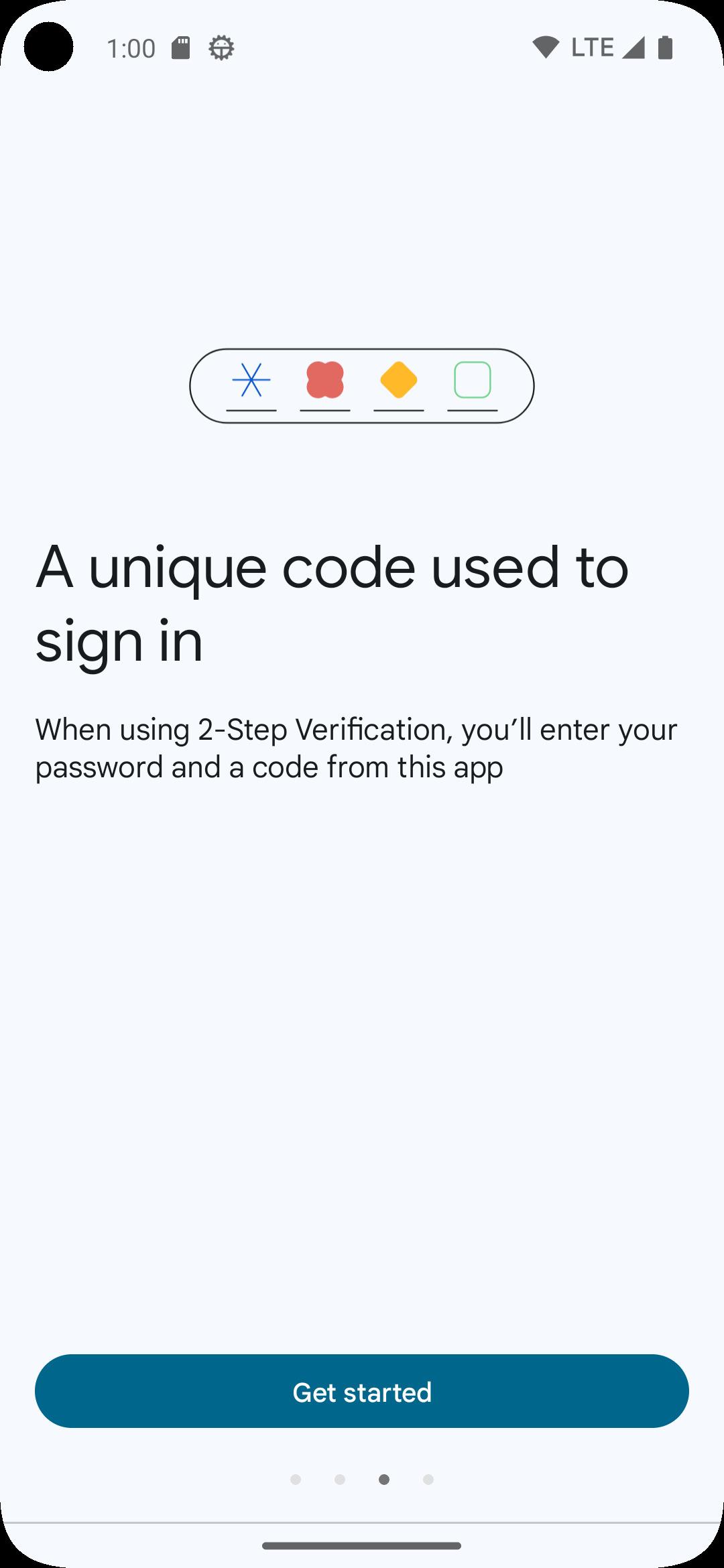
Google Authenticator generates one-time codes that work without internet or mobile service. You can open the app, read the current code, and enter it during sign-in on supported sites. Because the codes refresh automatically, you always use a current code without needing a connection.
Local-only mode or encrypted sync
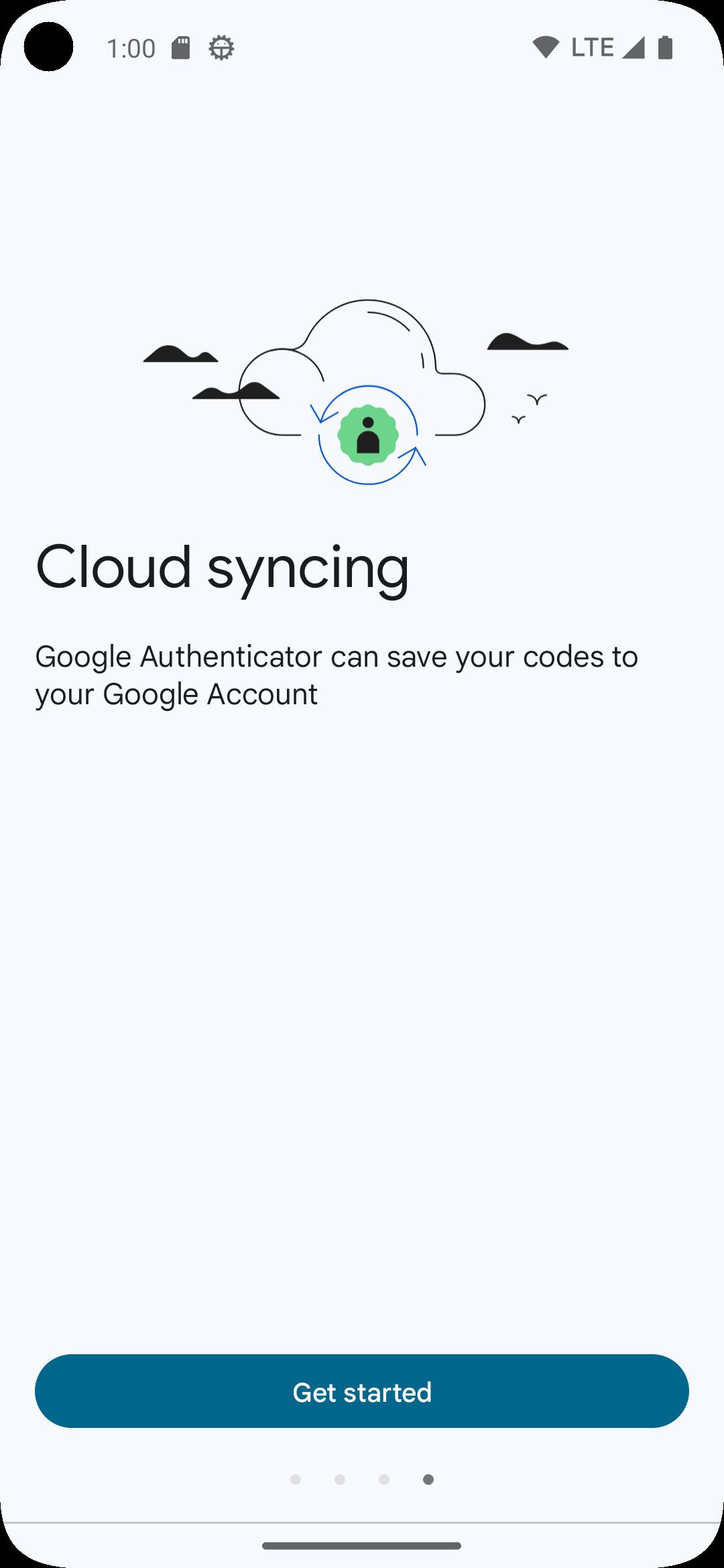
You can keep codes only on one device for maximum local control, or you can sign in with your Google Account to sync codes securely across phones and tablets. Encrypted sync helps prevent lockouts when switching devices and makes recovery easier after a loss. You can start in local-only mode and enable sync later if your needs change.
Quick setup and easy transfer
Adding accounts is fast. You can scan a QR code provided by the service you are enabling or enter a setup key. When moving to a new phone, you can export and import selected accounts to transfer them quickly, which reduces downtime during upgrades.
Organized multi-account management
Google Authenticator lets you keep many accounts in one place and manage them with simple tools. You can edit labels so entries are clear, reorder items to keep your most-used accounts at the top, and use search to find an entry quickly. This organization helps you get to the right code without scrolling through long lists.
Privacy Screen protection
For an extra on-device layer, you can enable Privacy Screen. The app will then require your device PIN, pattern, or biometric unlock before showing codes. This keeps your codes hidden from anyone who picks up your phone while it is unlocked.
If a code does not work, first ensure your phone’s date and time are set to automatic and accurate. Many services reject codes if device time is off by even a small amount. If your phone is lost or stolen, remove that device’s second factor from each affected site as soon as possible, then re-link Google Authenticator on a new device. If codes disappear after a reset or change, add your accounts again using the original site’s 2-Step Verification settings. There is no separate desktop app, so keep the mobile app handy while signing in on a computer. Some services also support passkeys, which you can use instead of codes when available.
Getting started is straightforward and takes only a few minutes on an Android phone. During setup, have your account’s 2-Step Verification page open on another device to scan or copy the code.
First, open Google Authenticator and choose to continue without a Google Account or sign in to enable sync.
Next, on the site or app you are protecting, turn on 2-Step Verification and choose to set up an authenticator app.
Then, in Google Authenticator, tap the add button and scan the QR code, or select enter setup key and paste the code provided.
After that, return to the site and enter the 6-digit code shown in Google Authenticator to confirm the link.
Finally, if you are moving from an old phone, use export on the old device and import on the new device to transfer selected accounts.
Google Authenticator adds one-time codes to protect sign-ins and works even when your phone is offline. You can keep everything local or enable encrypted sync for smoother device changes. Download Google Authenticator APK on APKPure to set up 2 Step Verification quickly.
For official help and detailed guidance, visit:
Last updated on Mar 13, 2026
* Cloud syncing: Your Authenticator codes can now be synced to your Google Account and across your devices, so you can always access them even if you lose your phone.
* Privacy Screen: Access to Authenticator can now be protected by your screen lock, PIN or biometric.
* Improved UX and visuals: We've made the app easier to use and more visually appealing.
Latest Version
 7.1
7.1
Uploaded by
Ericx Kurniawan
Requires Android
Android 6.0+
Available on

Category
Report




Discover what you want easier, faster and safer.
